Map Farm in Google Earth, Export Polygons as KML files
The goal
Following this guide, we will successfully map paddock boundaries in Google Earth and import them into Adviser, assigning them the correct name. This will be used throughout the Adviser program for a visual representation of the Farm area, and to create ‘layers’ as required to represent required parameters. The accuracy of these images and the correct alignment of polygons and background imagery depend on user precision matching Reference Points between Google Earth and Adviser, and correct co-ordinate transference. Time to flex those mouse-clicking fingers! Let’s get started.
Summary of process
Please find below a summary of the process to successfully Import KML files, calculate area (if required) and allocate names:
At this point, you are ready to go!
Google Earth - Export
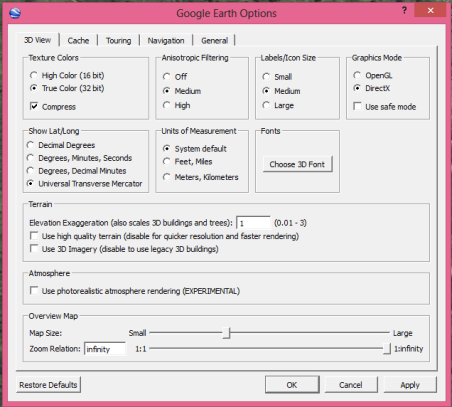
Firstly, we need to prepare Google Earth. Open the program, and ensure that the program is ready by completing steps below:
We are now ready to start a new Farm Folder.
Create new Farm Folder in Google Earth
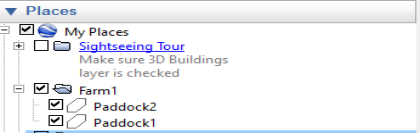
We are ready to populate the Farm Folder with polygons of our paddocks.
Create a Paddock Polygon
Note: Ensure that orientation is due North

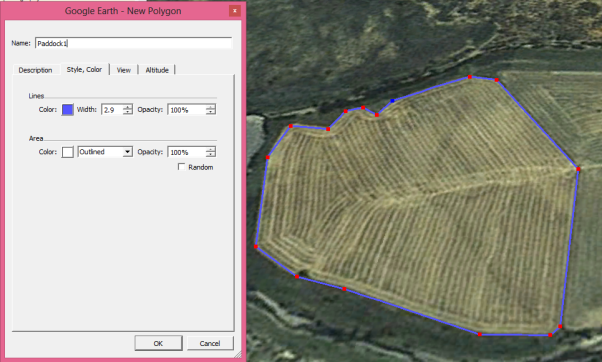
Your paddocks are now created.
Save Farm for export
Our paddocks are all created, so it is time to export them as a group.
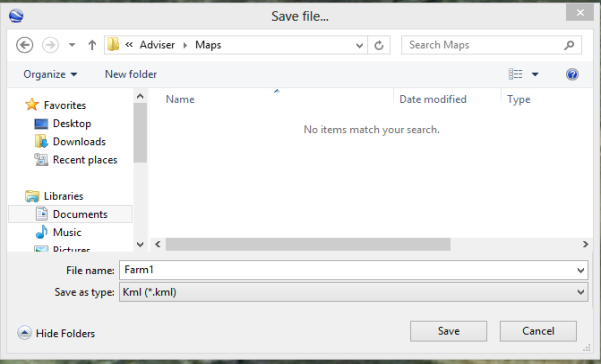
We are now ready to bring our new polygons into the Adviser program.